The invitation builder controls how your invite looks when it is shared. The theme builder controls how it feels when guests actually open it.
When a guest arrives at your event link, the colors they see -- the navigation bar, the RSVP buttons, the page background -- come from your event theme. The theme builder is where you set those.
Where to find it
From your event, go to the "Settings" tab.
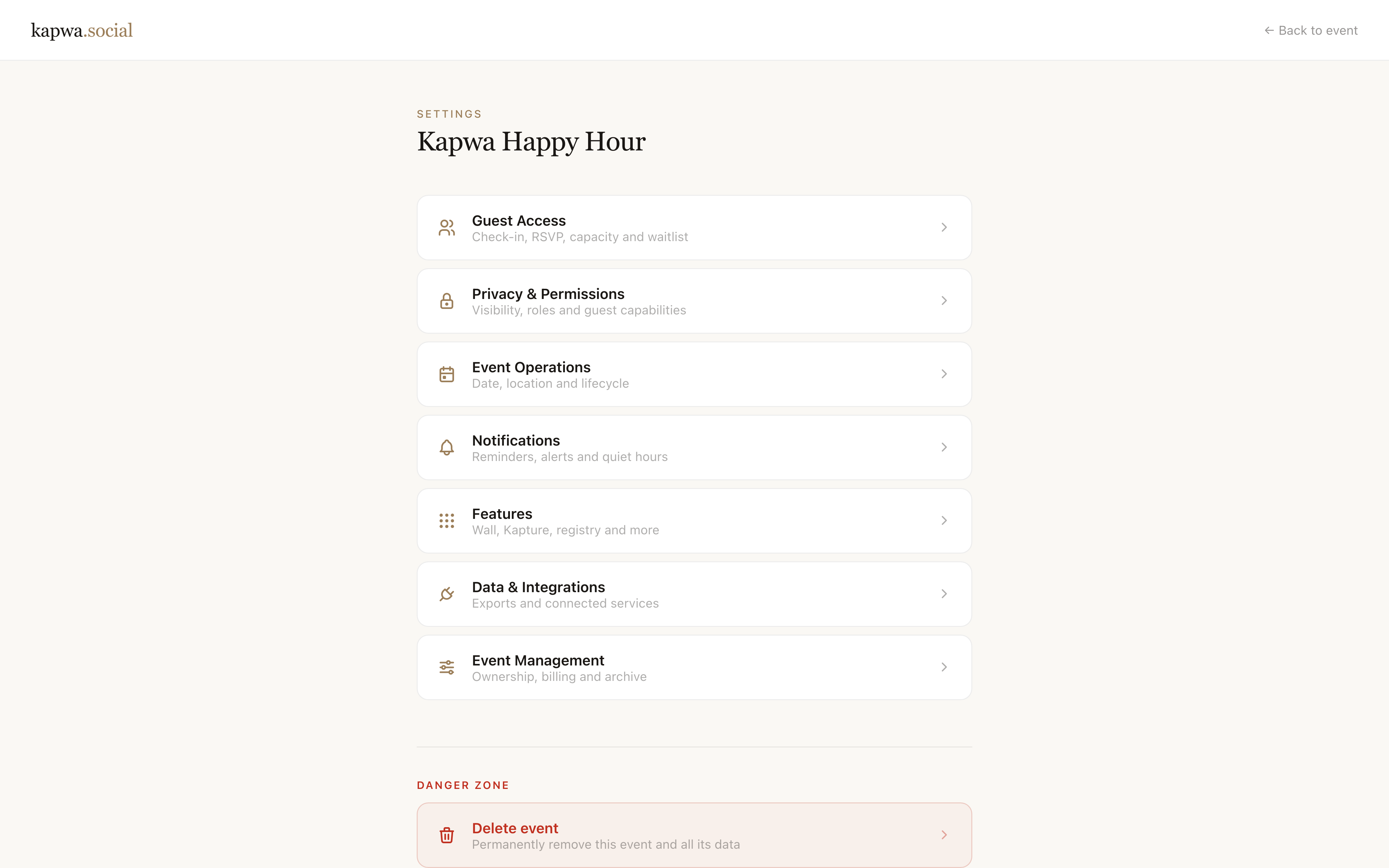
Scroll to the "Guest theme" section. You will see three color controls:
- Primary color -- the accent color used for buttons, links, and interactive elements
- Header background -- the color of the navigation bar at the top of the guest page
- Page background -- the color behind the content
How it connects to the invitation builder
If you have already set a scene in the invitation builder, Kapwa automatically suggests a starting theme based on that scene's palette. You can accept the suggestion or override any of the three colors individually.
This keeps the invite and the guest experience visually consistent -- the same tones carry through from the link preview to the event page itself.
Choosing colors that work
A few things that make a noticeable difference:
Keep the primary color high-contrast against white. It is used for buttons guests need to tap -- RSVP, upload, submit. If the color is too light, those buttons become hard to read.
The header background sets the mood. A dark header with light text reads as more formal. A light or warm header feels casual and approachable. For birthday parties and baby showers, softer tones tend to work well. For bachelorettes or graduation events, something more saturated creates energy.
Page background changes the whole feel. The default is a warm off-white. If you switch it to something darker, the entire guest experience shifts significantly. This works well for themed events -- a moody dark background with a bold accent color can make an event page feel designed, not just filled in.
Previewing before you save
Changes in the theme builder are previewed live. Click "Preview guest view" to open a preview of what guests will see with your current settings before you save.
If you do not love what you see, you can reset to the default theme at any time from the same section.
What guests actually see
Once you save the theme, every guest who opens your event link sees the updated design. There is no cache to clear on their end -- the theme applies immediately.
The theme applies to:
- The event home page (photo wall, RSVP, potluck, registry)
- The RSVP confirmation page
- Any modals or overlays guests interact with
The theme does not apply to the host dashboard. That always uses the standard Kapwa interface.
For a full walkthrough of everything you can customize before sharing your event, start with how to create your first event on Kapwa and how to use the invitation builder.